
NetNerd92
New member
- Joined
- Nov 11, 2012
- Messages
- 53
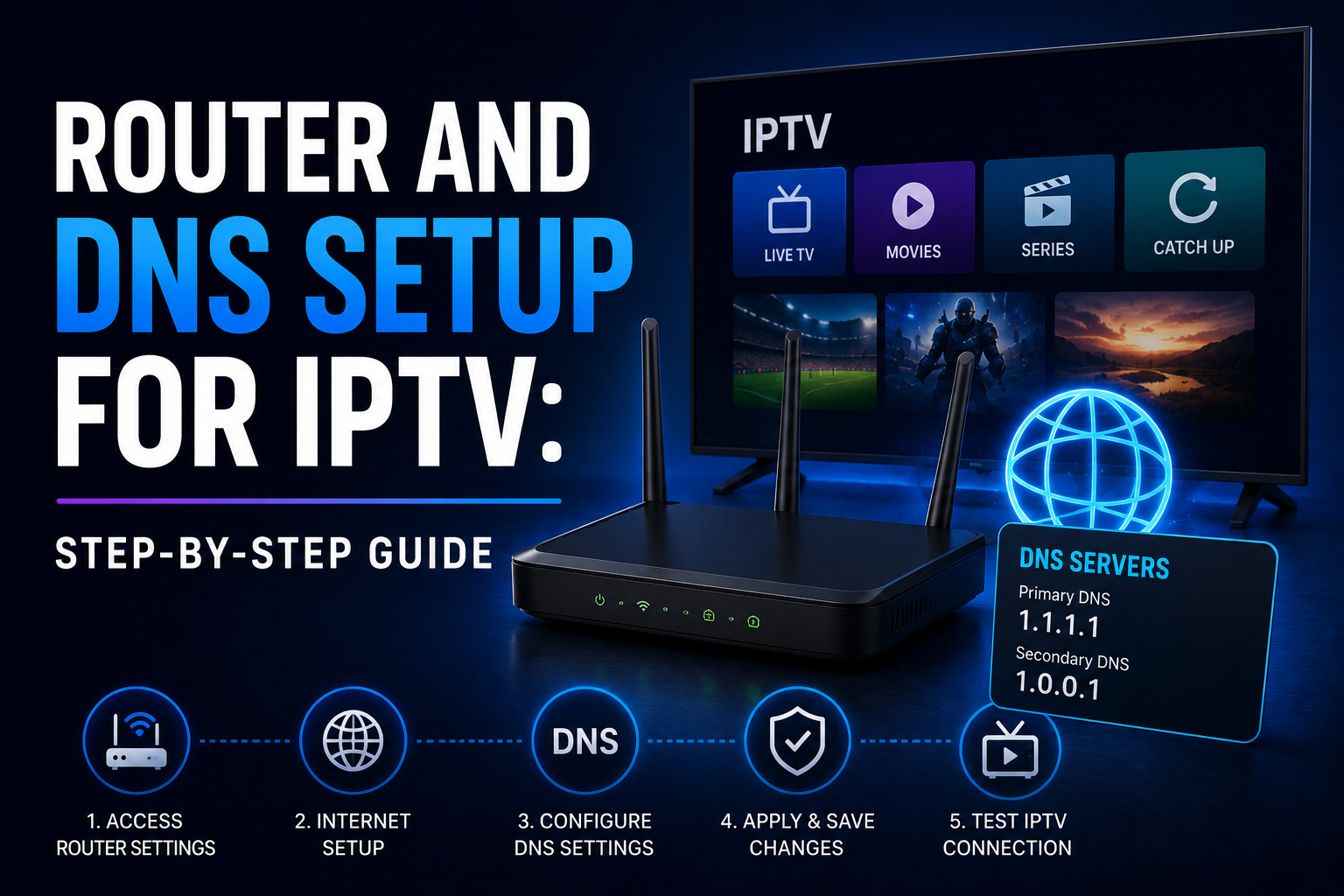
Your router settings have a direct impact on IPTV performance and stability. Two router-level changes make the most difference: DNS configuration and QoS settings. This guide explains both.
DNS (Domain Name System) translates the server names in your IPTV app into IP addresses. Your ISP's default DNS servers are not always optimised for IPTV CDN resolution and may actively filter certain streaming addresses.
Changing to 1.1.1.1 (Cloudflare) as your primary DNS:
• Eliminates ISP-level DNS filtering that can block IPTV streams
• Generally resolves faster than ISP DNS (8ms vs 30–50ms typical)
• Often resolves CDN addresses to geographically better server locations
TP-Link Archer series: Log in at 192.168.0.1 → Advanced → Network → DHCP Server → Primary DNS: 1.1.1.1, Secondary DNS: 1.0.0.1
Asus RT series: 192.168.1.1 → LAN → DHCP Server → DNS Server 1: 1.1.1.1, DNS Server 2: 1.0.0.1
BT Smart Hub: http://bthub.home → Advanced Settings → Broadband → DNS Settings → Primary: 1.1.1.1, Secondary: 1.0.0.1
Sky Hub: 192.168.0.1 → Security → Advanced Settings → DNS
Virgin Media Hub: 192.168.0.1 → Advanced Settings → DHCP → Primary/Secondary DNS
After saving, restart the router and any devices you want to test. Changes apply within a few minutes of device reconnection.
Quality of Service (QoS) allows you to prioritise specific devices' traffic when your network is under load. Setting your TV or Android box to "High Priority" ensures it gets network resources first when multiple devices compete.
On Asus routers: Adaptive QoS → Traditional QoS → set the streaming device's MAC address to Highest priority
On TP-Link routers: Advanced → QoS → Add device by MAC address → set Priority to High
On most other routers: Look for "Traffic Control", "Bandwidth Control", or "Media Priority" in Advanced settings
If your streaming device is on Wi-Fi, router placement matters:
• Position at midpoint height (not on the floor, not above head height)
• Keep away from cordless phone bases, microwave ovens, and baby monitors (all 2.4 GHz interference)
• Never inside a closed TV cabinet or cupboard
• Antennas pointing vertically upward for single-floor use; one angled horizontally for multi-floor coverage
Why DNS Matters for IPTV
DNS (Domain Name System) translates the server names in your IPTV app into IP addresses. Your ISP's default DNS servers are not always optimised for IPTV CDN resolution and may actively filter certain streaming addresses.
Changing to 1.1.1.1 (Cloudflare) as your primary DNS:
• Eliminates ISP-level DNS filtering that can block IPTV streams
• Generally resolves faster than ISP DNS (8ms vs 30–50ms typical)
• Often resolves CDN addresses to geographically better server locations
How to Change DNS on Common Routers
TP-Link Archer series: Log in at 192.168.0.1 → Advanced → Network → DHCP Server → Primary DNS: 1.1.1.1, Secondary DNS: 1.0.0.1
Asus RT series: 192.168.1.1 → LAN → DHCP Server → DNS Server 1: 1.1.1.1, DNS Server 2: 1.0.0.1
BT Smart Hub: http://bthub.home → Advanced Settings → Broadband → DNS Settings → Primary: 1.1.1.1, Secondary: 1.0.0.1
Sky Hub: 192.168.0.1 → Security → Advanced Settings → DNS
Virgin Media Hub: 192.168.0.1 → Advanced Settings → DHCP → Primary/Secondary DNS
After saving, restart the router and any devices you want to test. Changes apply within a few minutes of device reconnection.
QoS: Prioritising Your Streaming Device
Quality of Service (QoS) allows you to prioritise specific devices' traffic when your network is under load. Setting your TV or Android box to "High Priority" ensures it gets network resources first when multiple devices compete.
On Asus routers: Adaptive QoS → Traditional QoS → set the streaming device's MAC address to Highest priority
On TP-Link routers: Advanced → QoS → Add device by MAC address → set Priority to High
On most other routers: Look for "Traffic Control", "Bandwidth Control", or "Media Priority" in Advanced settings
Router Placement
If your streaming device is on Wi-Fi, router placement matters:
• Position at midpoint height (not on the floor, not above head height)
• Keep away from cordless phone bases, microwave ovens, and baby monitors (all 2.4 GHz interference)
• Never inside a closed TV cabinet or cupboard
• Antennas pointing vertically upward for single-floor use; one angled horizontally for multi-floor coverage
Last edited by a moderator: